

Built-in tools
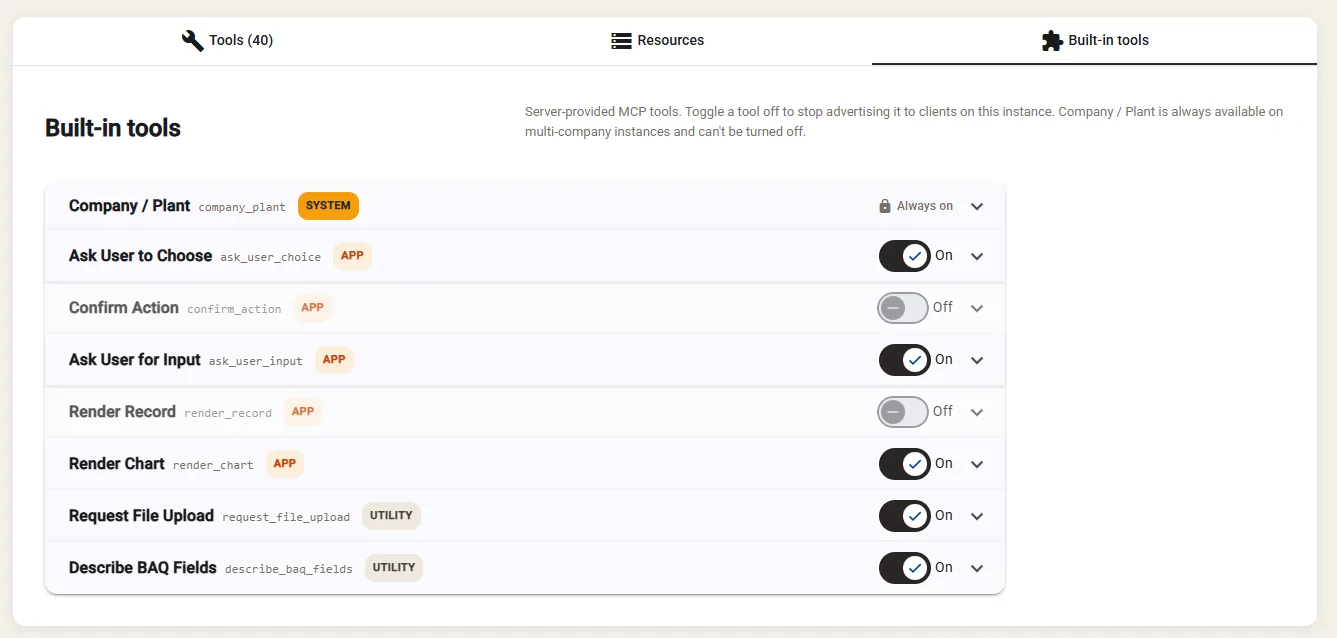
Cutova ships eight tools of its own. You publish none of them: they are there as soon as an instance is registered. The Built-in tools tab on the instance controls which ones are advertised.
First, the thing that decides what your users see
Section titled “First, the thing that decides what your users see”The tools tagged APP draw an interactive panel inside the chat. Whether that panel appears depends on the client, not on Cutova.
Every MCP client declares what it can do when it connects, and Cutova picks the best form available:
| What the client supports | What the user gets |
|---|---|
| MCP Apps | The full interactive panel: the pictures below |
| Elicitation only | A plain form from the client, where the tool offers that step |
| Neither | Text. The assistant asks in words and reads the reply |
Text fallbacks support clients without panels. The result still depends on successful tool execution and the client handling the response.
If a tool waits on a form that never appears, check the client’s elicitation support and version. See Troubleshooting. Chart and record tools do not use the elicitation step.
Panel support varies by client and version. Check the tool is enabled as well as the client’s capabilities.
The three categories
Section titled “The three categories”| Tag | Meaning |
|---|---|
| SYSTEM | You cannot turn it off |
| APP | Draws a panel where the client supports it, falls back where it does not |
| UTILITY | No UI. Other tools depend on these |
Company / Plant: company_plant
Section titled “Company / Plant: company_plant”SYSTEM. Advertised only on a multi-company or multi-plant instance: and there it cannot be turned off. A single-company, single-plant instance does not offer it at all, because there is nothing to choose.
How a person chooses which Epicor company and plant they are working in. Called with nothing, it lists the companies and plants that person can reach, read live from Epicor as them. Called with a company or plant, it switches.
The selection is saved per user and applies to every later call until they change it. That is why it cannot be disabled where it applies: without it a multi-company user has no way to say where they are.
Ask User to Choose: ask_user_choice
Section titled “Ask User to Choose: ask_user_choice”APP. The assistant needs a decision, so it presents the options instead of guessing.
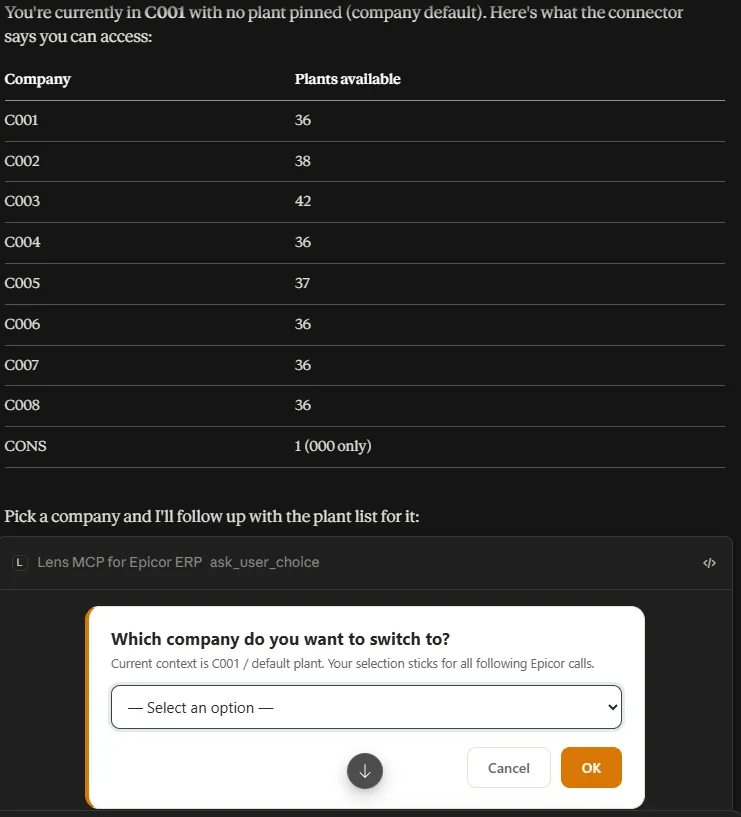
Single-select by default. With multiple it becomes a checklist.
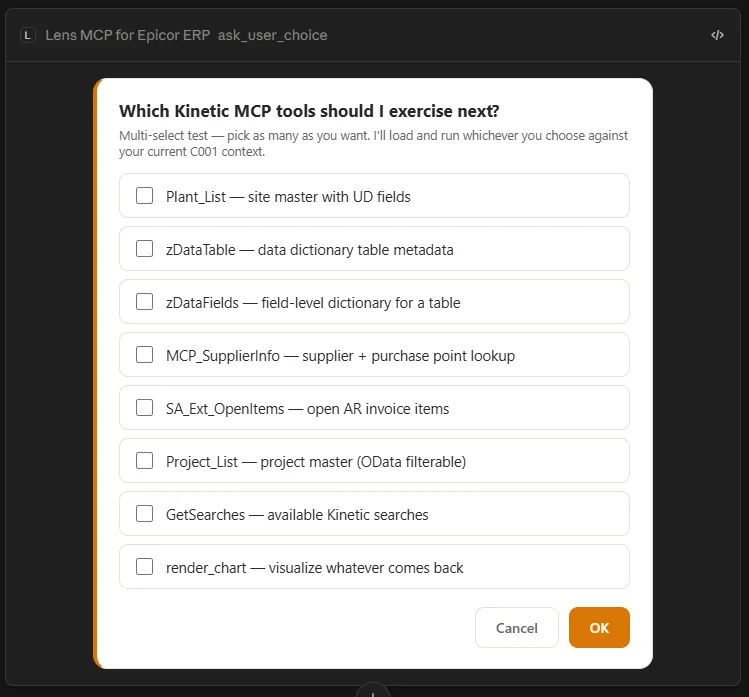
Use it whenever guessing would be worse than asking: which company, which of four matching customers, which of these to run.
Ask User for Input: ask_user_input
Section titled “Ask User for Input: ask_user_input”APP. For a typed value: short text, a number, a date, or a date range.
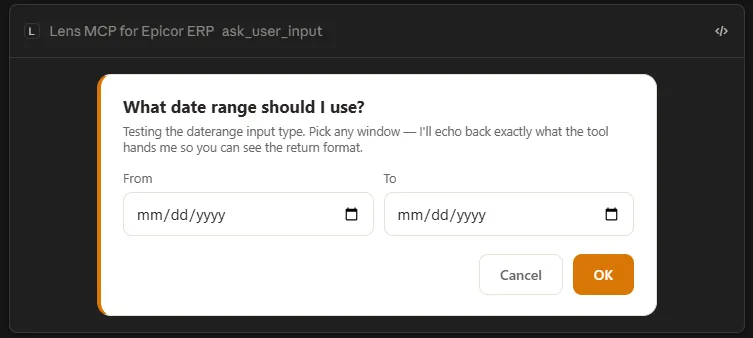
A real date picker beats parsing “last quarter” out of a sentence.
Confirm Action: confirm_action
Section titled “Confirm Action: confirm_action”APP. Lets the assistant request a yes/no decision, optionally with a summary of the proposed action. The assistant must call it. Enabling this tool does not automatically block writes until approval. Use Epicor permissions and your AI client’s approval settings to control write operations.
It is switched off in the screenshot above, but that is one instance’s setting, not a default.
If you publish tools that change Epicor data, enable this helper and instruct the assistant to request confirmation.
Render Chart: render_chart
Section titled “Render Chart: render_chart”APP. Interactive Chart.js output: bar, line, area, pie, doughnut, scatter, radar, polar area and combinations. The assistant builds the chart from data it already has, so this fetches nothing.
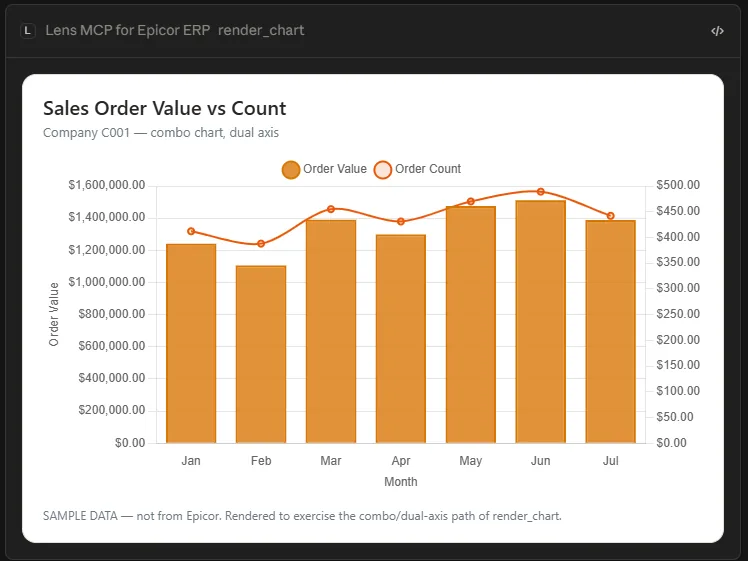
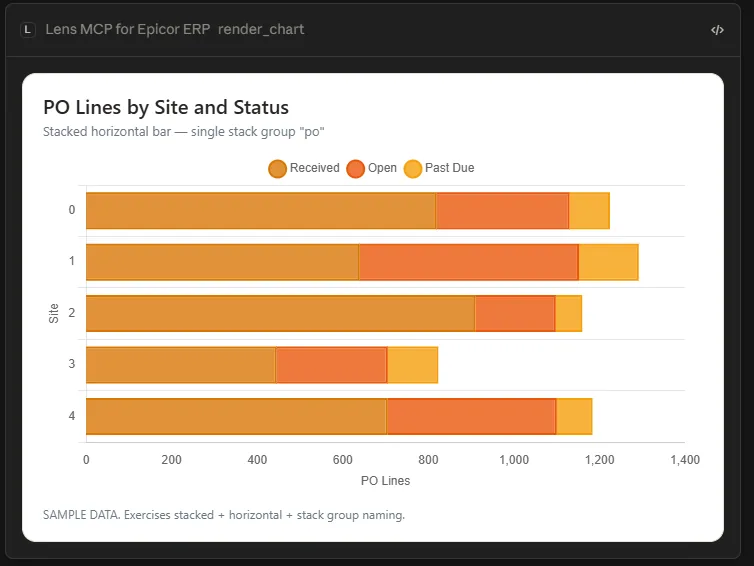
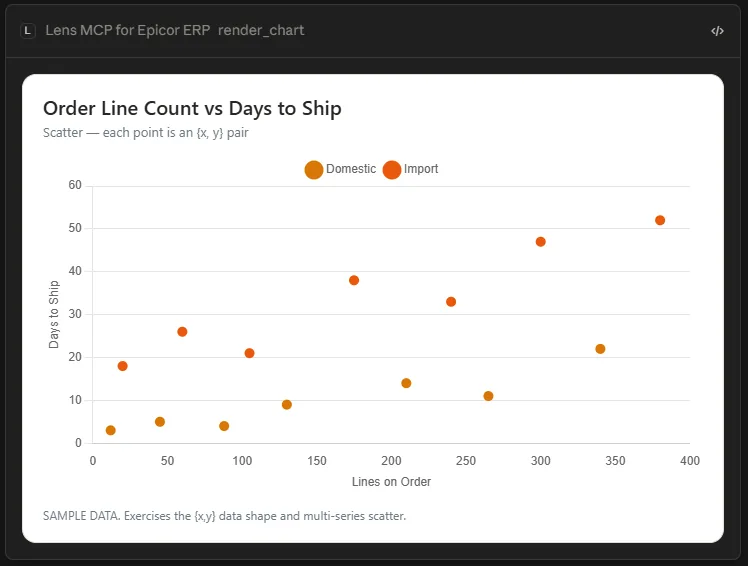
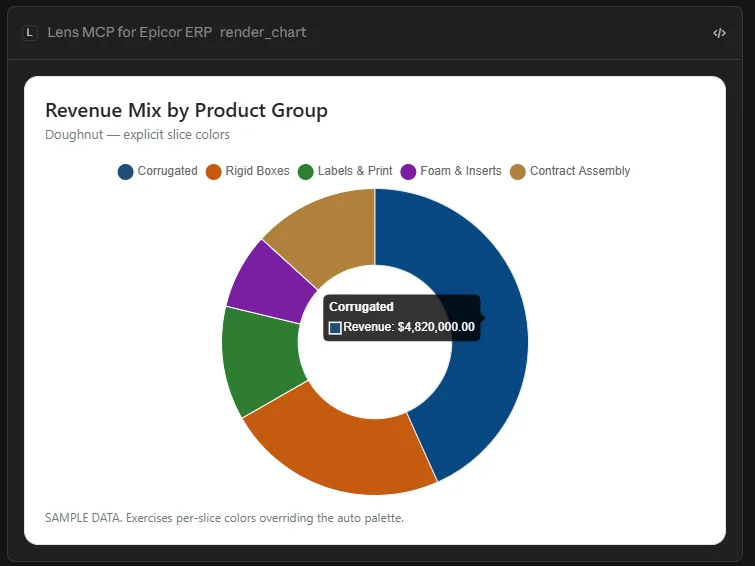
Stacked, horizontal, dual axis, per-slice colours and currency formatting are all available. Where the client cannot draw it, the numbers come back as text instead.
Render Record: render_record
Section titled “Render Record: render_record”APP. Switched off in the screenshot above, which is one instance’s setting rather than a default.
Lays a business record out as a styled read-only document: an invoice, an order, a customer, a
shipment. Two looks: document for a paper-like page with a letterhead, record for a web detail
page.
Like the chart tool, it fetches nothing. It formats data the assistant already has.
Request File Upload: request_file_upload
Section titled “Request File Upload: request_file_upload”UTILITY. No panel. Leave it on if any of your tools take a file.
Returns a short-lived, one-time upload URL and a file reference. The client uploads the file directly, then passes the reference to the tool that wanted it, so a large file never travels through the conversation as base64.
Describe BAQ Fields: describe_baq_fields
Section titled “Describe BAQ Fields: describe_baq_fields”UTILITY. No panel. Leave it on.
Returns a BAQ tool’s filterable fields, their types, and the OData operators that work on them.
This is what lets an assistant filter properly instead of pulling every row and sorting it out afterwards. Turning it off does not break anything, but it makes every BAQ tool clumsier to use.
What to change, and when
Section titled “What to change, and when”Most instances should leave the defaults alone. Two changes are worth making deliberately:
- Turn
confirm_actionon if you publish any tool that writes to Epicor. - Turn a tool off only when you do not want it offered at all. It reduces the choices the assistant has to weigh, which is the one real reason to do it.
Next: Manage console admins.
Epicor® and Kinetic® are trademarks of Epicor Software Corporation. Cutova is an independent product and is not affiliated with, endorsed by, or sponsored by Epicor Software Corporation.
Cutova, a product of Lens Software LLC