

What is in the solution package
Installing anything into an ERP deserves a careful look first. This page lists every component of
MCP-Solution.cab, what each one does, and what they do not do.
You do not have to take this page’s word for it. Verify the package yourself before you install it.
The short version
Section titled “The short version”The package installs four functions and two sign-in screens, plus the menu entries that reach them. It reads and writes four configuration rows. It touches no business data: no parts, no orders, no ledger, no customers.
| Component | What it is |
|---|---|
MCP function library |
Four Epicor Functions. Key management and token signing |
Ice.UI.MCPAuth |
The Kinetic sign-in screen |
MCPToken dashboard and BAQ |
The same sign-in for Classic environments |
| Two menu entries | How your users reach the two screens |
The functions
Section titled “The functions”All four live in one Epicor Function Library named MCP. You can read every line of their source
in Epicor at any time, before or after installing: open Function Maintenance and select the
MCP library.
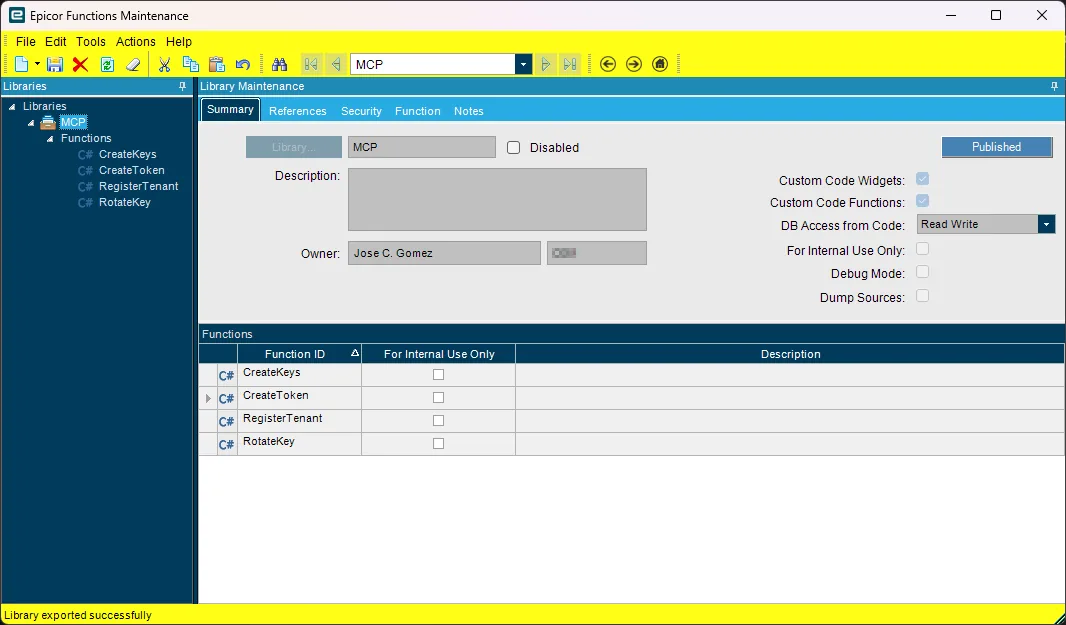
Nothing is compiled or hidden. Click any function to read its C#.
CreateKeys: makes the signing keypair
Section titled “CreateKeys: makes the signing keypair”Generates a 2048-bit RSA keypair the first time you register, and writes it to two Ice.SysConfig
rows: LensMCPPub (public) and LensMCPPrv (private).
The private key never leaves your Epicor server. Cutova receives only the public key, which is all it needs to check that a token really came from your system.
CreateToken: signs a sign-in token
Section titled “CreateToken: signs a sign-in token”Runs when one of your users authorizes an AI client. It builds a short JSON token saying “this is
<your user>, on <this instance>”, signs it with the private key, and returns it.
It does not send anything anywhere. It returns the token to the screen that asked for it.
Two checks run before it signs:
- The destination must be on the allowlist stored in the
LensRedirectrow. If it is not, the function refuses and signs nothing. - If that allowlist row is missing or empty, it also refuses. It does not fall back to signing for anyone.
RegisterTenant: records which Cutova tenant this instance belongs to
Section titled “RegisterTenant: records which Cutova tenant this instance belongs to”Writes the LensTen row: your tenant id, your instance id, and the token issuer and audience. It
also adds the Cutova address to the LensRedirect allowlist.
With the current library, re-registering adds the address and retains existing allowlist entries. It reuses the existing keypair, so this does not sign out connected users.
RotateKey: replaces the signing keypair on purpose
Section titled “RotateKey: replaces the signing keypair on purpose”For the day you want a new keypair. Everyone connected has to authorize again afterwards, so this is a deliberate action, not routine maintenance.
The sign-in screens
Section titled “The sign-in screens”Your users see one of these when an AI client asks for access. Both do the same job; you get both, and your environment uses whichever fits.
Ice.UI.MCPAuth: the Kinetic screen
Section titled “Ice.UI.MCPAuth: the Kinetic screen”A full-page notice explaining what they are approving, with Authorize and Cancel. Approving
calls CreateToken and hands the token back to Cutova. Cancel leaves without issuing anything.
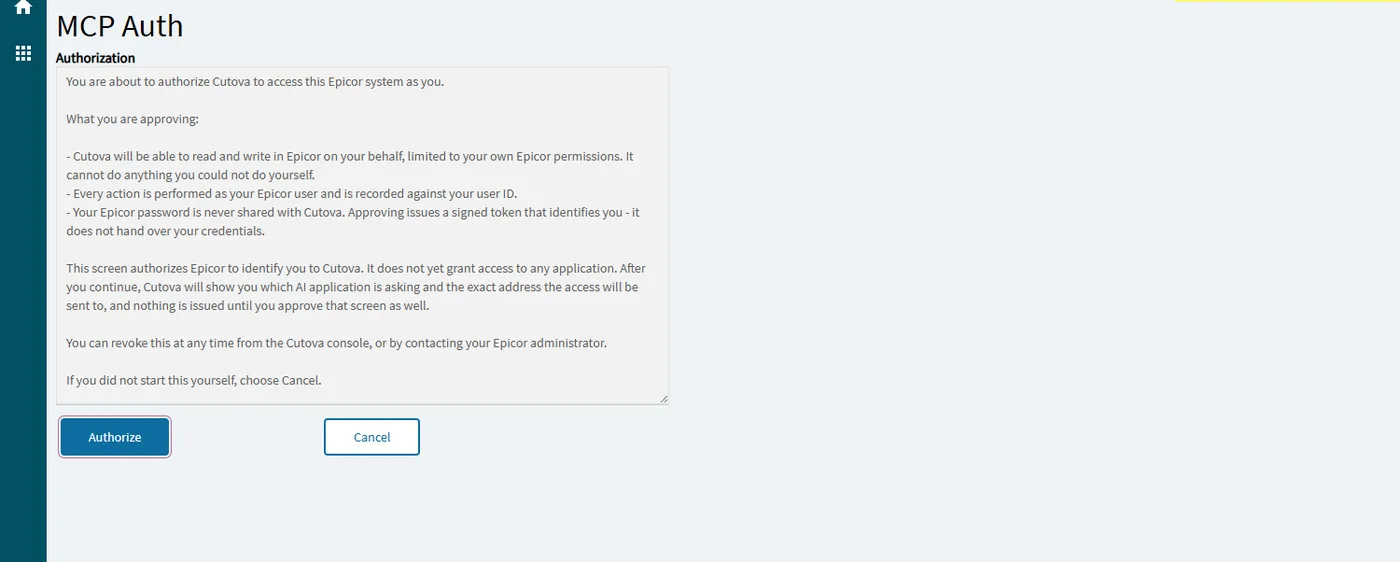
Reached from the menu entry Cutova.ai MCP for Kinetic Auth.
MCPToken: the Classic screen
Section titled “MCPToken: the Classic screen”Classic environments cannot do the browser redirect the Kinetic screen uses, so this one is a dashboard with a BAQ behind it. It shows the same notice and produces the same token, and the user copies and pastes it into Cutova instead of being redirected.
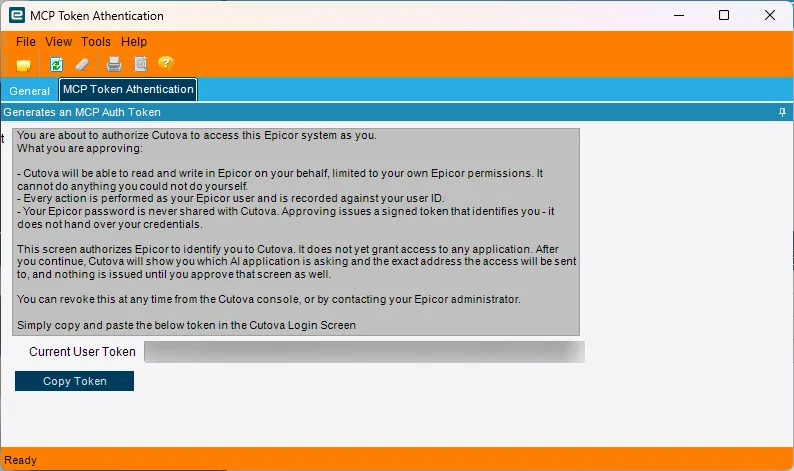
Same function, same token, same checks. Only the delivery differs. The token in that field is scrubbed in this screenshot: treat a real one as a password.
Reached from the menu entry Cutova.ai MCP for Kinetic Auth Classic.
What it does not do
Section titled “What it does not do”This is the part most Epicor administrators want first.
- It reads and writes no business data. No parts, orders, jobs, invoices, customers, ledger.
- It touches four
Ice.SysConfigrows and nothing else in your database:LensMCPPub,LensMCPPrv,LensTen,LensRedirect. - It changes no existing Epicor screen, BO, BPM or report. Everything it installs is new and
named
MCP*orIce.UI.MCPAuth. - It grants Cutova no permissions of its own. Every later action runs as the signed-in Epicor user, limited to that user’s own Epicor permissions, and is recorded against their user id.
- It sends nothing outbound on install. Nothing calls out until one of your users chooses to authorize.
- Your Epicor password is never shared. Authorizing issues a signed token; it does not hand over credentials.
Verify what you downloaded
Section titled “Verify what you downloaded”The download button is not the only thing vouching for the package.
Open /api/mcp-solution.cab.json on your Cutova server. It reports the library revision, the size,
a sha256 of the exact bytes the button serves, and a set of markers naming the fixes that must be
present. The console shows the same revision beside the button.
The .cab is a zip. Rename it and open it if you want to read the manifest and see the component
list for yourself.
What the package will not fix
Section titled “What the package will not fix”Installing it is step two of three. It does nothing until you complete registration in the Cutova
console, which is what writes LensTen and the allowlist. Until then the functions are present and
inert.
Read Register your Epicor instance for the whole sequence.
Epicor® and Kinetic® are trademarks of Epicor Software Corporation. Cutova is an independent product and is not affiliated with, endorsed by, or sponsored by Epicor Software Corporation.
Cutova, a product of Lens Software LLC