

When Epicor is not on the internet
The on-premise gateway relays Cutova requests to an Epicor server inside your private network.
Skip this page if your Epicor server is internet-reachable. Most are, and the gateway is extra moving parts you do not need.
How it works
Section titled “How it works”The gateway is a Windows service on a machine that can reach Epicor. It dials out to Cutova and holds the connection open, so you open no inbound firewall port and publish nothing.
AI client → Cutova (cloud) ← gateway (your network) → Epicor ↑ the gateway opens this, not the other way roundEverything below happens in two windows: the Cutova console, and the Cutova Gateway window that the installer opens on your Epicor-side machine. You do not need a command prompt.
The order matters
Section titled “The order matters”- Create the gateway record in the console.
- Install the gateway on a Windows machine that can reach Epicor.
- Register it and start the service.
- Then turn on Use Gateway on the Epicor instance.
Doing step 4 first gives you an instance that cannot reach Epicor, and a registration that fails for a reason that looks like bad credentials.
1. Create the gateway record
Section titled “1. Create the gateway record”Open Gateways and click + Create Gateway.
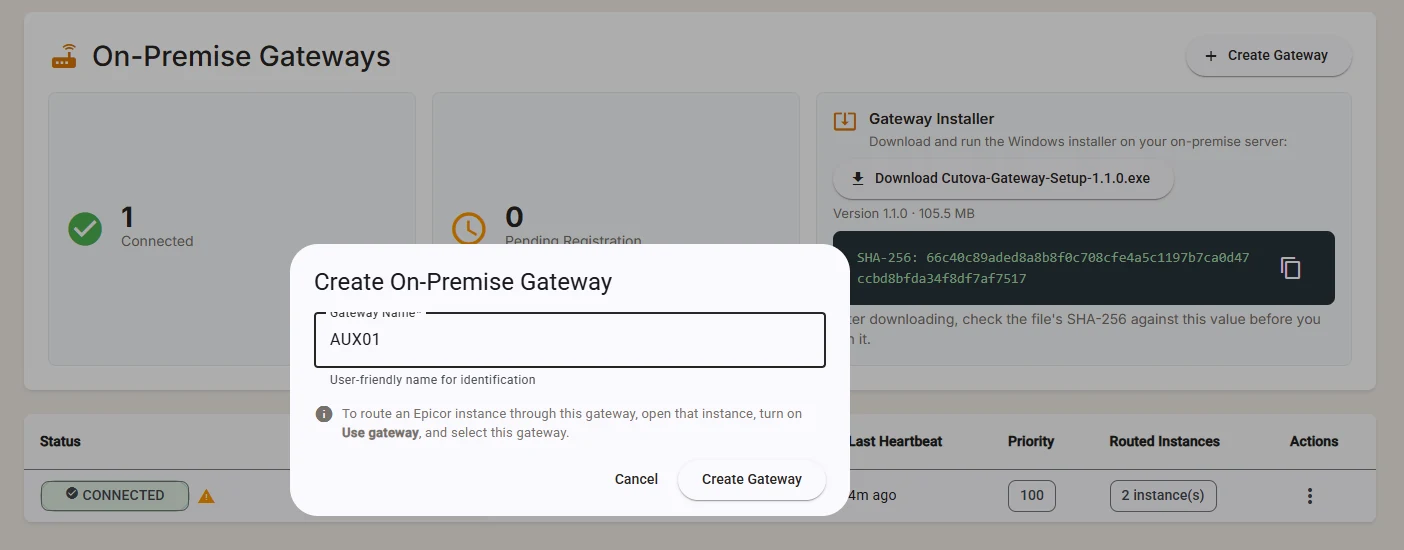
Only the name is required. You link Epicor instances from the instance itself, not from here.
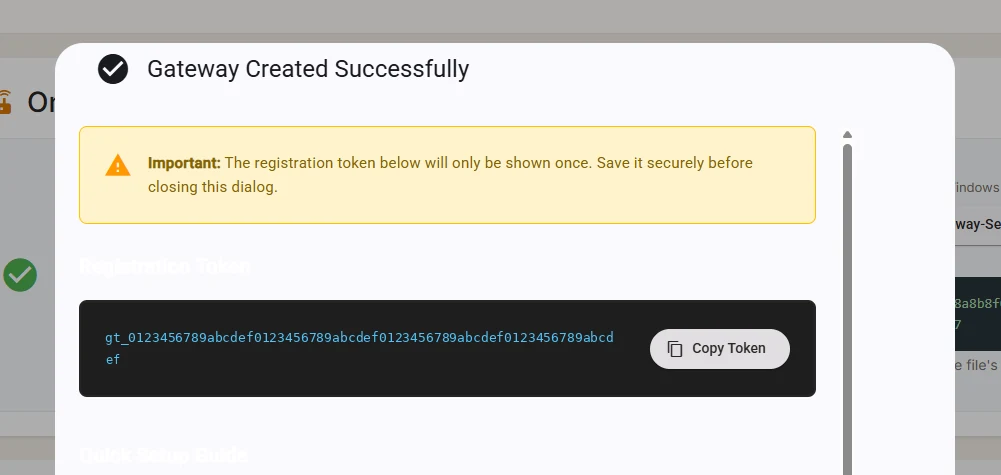
Cutova then shows the registration token. It is the one secret in this process.
2. Download and install
Section titled “2. Download and install”The Gateways page carries a Gateway Installer card with the version, the size and the SHA-256 checksum. The same download appears in the dialog above.
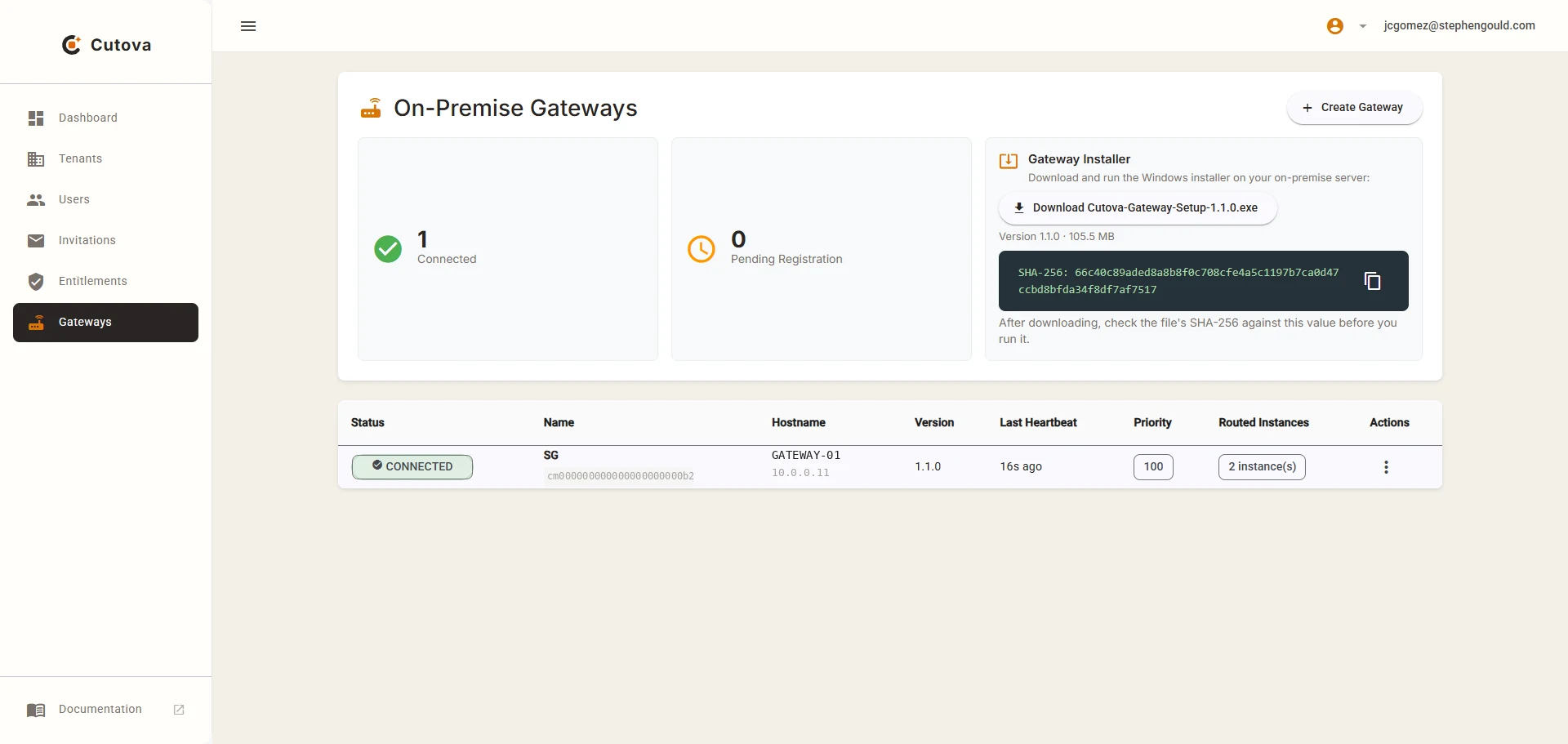
Download the installer, then check it before you run it:
Get-FileHash .\Cutova-Gateway-Setup-1.1.0.exe -Algorithm SHA256Compare that value with the one on the card. Use the copy button beside the checksum.
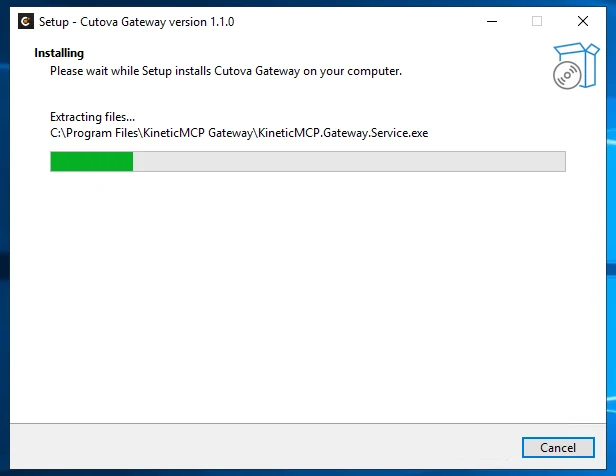
Run it on a machine that can reach Epicor. It needs administrator rights, and it installs a Windows service and the Cutova Gateway window.
If the card says the installer is not published, ask us for it.
3. Register and start
Section titled “3. Register and start”The installer opens the Cutova Gateway window when it finishes. Everything that is left happens in that window.
Open the Register tab. Paste the Platform URL and the registration token from step 1. The console gives you both, each with a copy button.
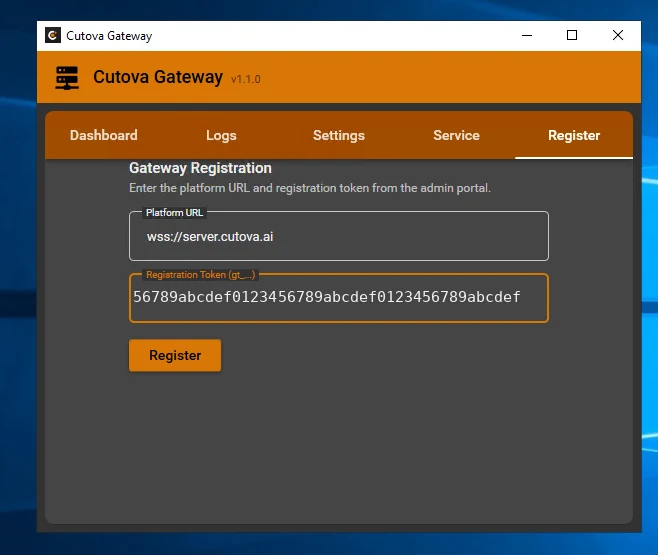
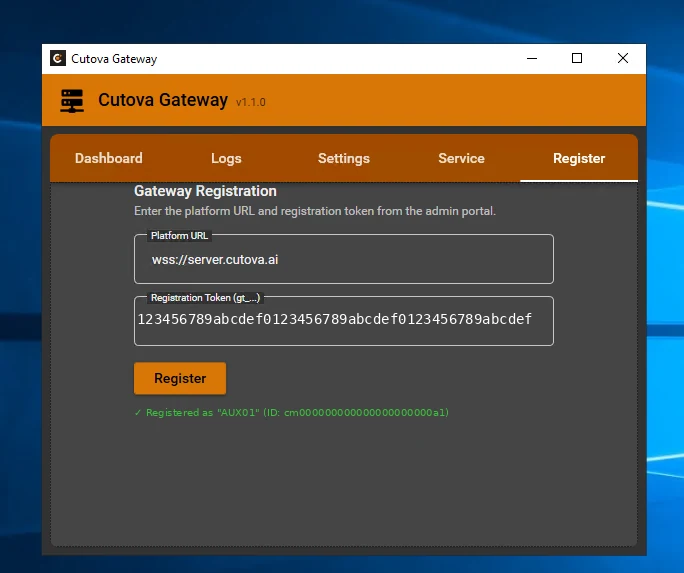
Click Register. The window confirms the name Cutova holds for this gateway.
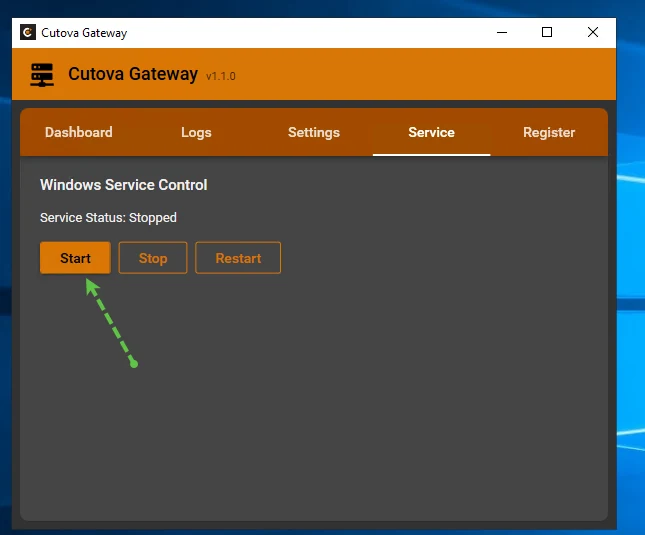
Open the Service tab and click Start.
The Dashboard tab then shows Connected, and the console shows CONNECTED on this gateway.
4. Route an Epicor instance through it
Section titled “4. Route an Epicor instance through it”You grant this on the Epicor instance, not on the Gateway screen. A gateway that has just registered serves nothing, and that is correct.
Open the Epicor instance, click Edit, and find Gateway Configuration. Turn on Use Gateway for this instance, then choose the gateway. The field is required, and the list marks which gateways are connected.
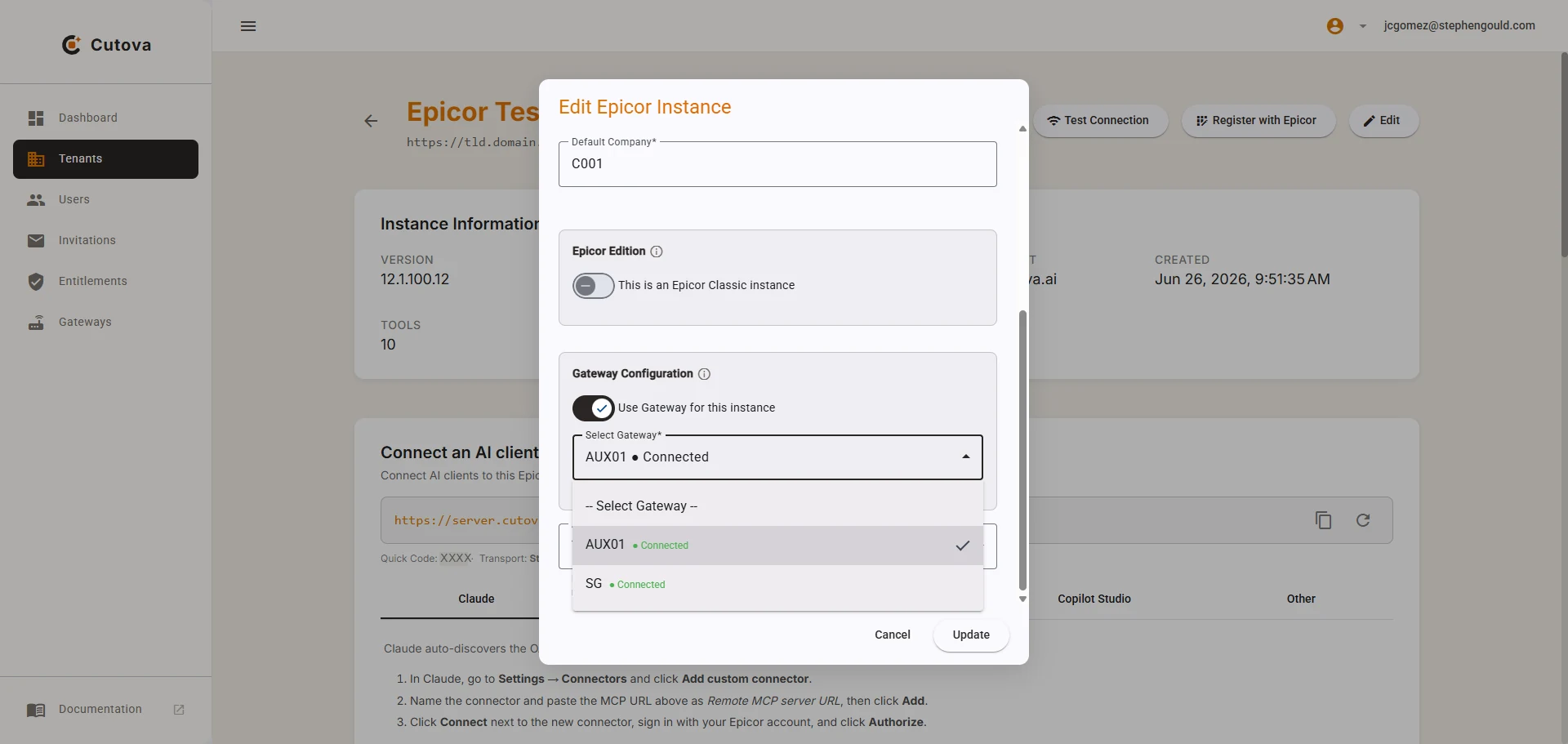
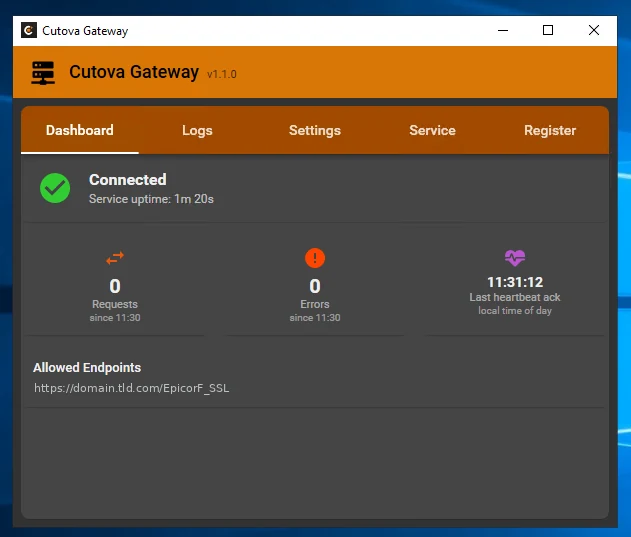
Save. Within one heartbeat the gateway’s Dashboard lists that instance’s URL under Allowed Endpoints. That is the gateway telling you what it will relay.
Nothing on the Gateway screen adds or removes an instance.
Reading the Gateways page
Section titled “Reading the Gateways page”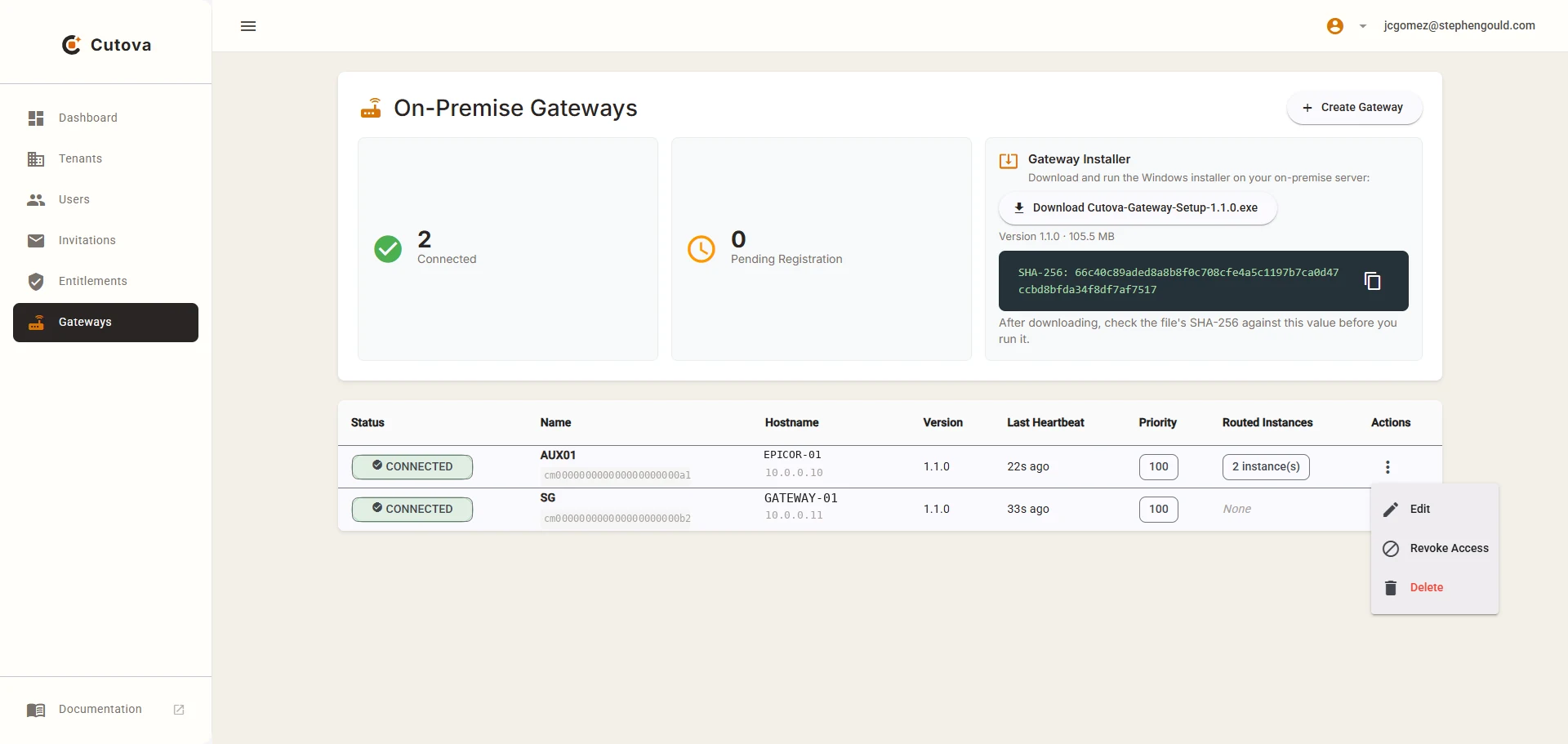
The page counts Connected and Pending Registration at the top. A healthy gateway shows:
| Column | What it tells you |
|---|---|
| Status | CONNECTED |
| Hostname | The machine it runs on, with its address |
| Version | The installed gateway version |
| Last Heartbeat | Seconds ago, not minutes. A stale heartbeat is the first sign of trouble. |
| Routed Instances | How many Epicor instances really route through it. None on a gateway you have not pointed an instance at yet. |
Pending Registration means the record exists but no service has connected to it yet. That is normal between steps 1 and 3, and a problem afterwards.
Removing a gateway
Section titled “Removing a gateway”The row menu offers two different things, and they are not interchangeable.
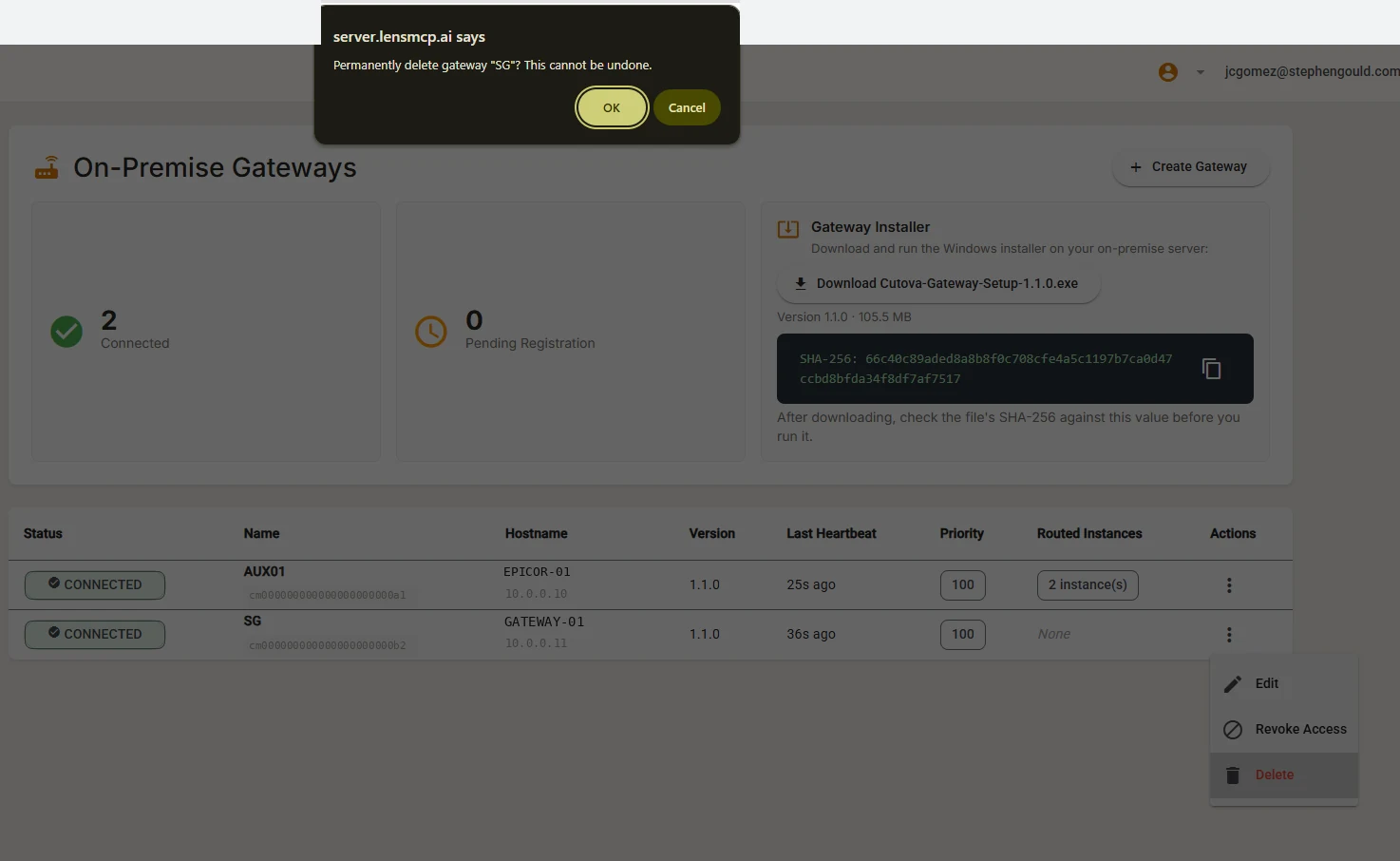
Revoke Access stops Cutova trusting this gateway. The record stays, so you keep its history, and the agent can no longer connect. Use it when a machine is decommissioned, or when a key may be exposed. Revoking disconnects an open gateway connection and rejects its in-flight requests. The revoked gateway cannot reconnect.
Delete removes the record. Cutova asks you to confirm, and the delete cannot be undone.
Reading the gateway window
Section titled “Reading the gateway window”| Tile | What it means |
|---|---|
| Requests and Errors | Counted since the time printed under each tile. The service holds them in memory, so a service restart sets them to zero and moves that time. |
| Last heartbeat ack | The local time of day when Cutova last answered. It should be within the last minute. |
| Service uptime | How long the Windows service has run, not how long the machine has. |
| Allowed Endpoints | The exact URLs this gateway relays to. Empty means no instance points at it. |
The Logs tab reads the service log. Clear deletes the log files, and it names any file it could not delete.
Two things to get right
Section titled “Two things to get right”The instance URL must carry the real port. The gateway matches the whole address: scheme, host and
port. An instance saved as https://erp.corp.com is refused when Epicor answers on
https://erp.corp.com:8443.
There is no failover. One gateway serves an instance, the one you chose. If that gateway is offline, the call fails with a clear error, and Cutova does not switch to another gateway. For high availability today, keep the gateway host reliable.
When something is wrong
Section titled “When something is wrong”| Symptom | Where to look |
|---|---|
Status is not CONNECTED |
The Service tab in the gateway window. Start the service if it is stopped. |
| Allowed Endpoints is empty | No instance points at this gateway. Do step 4. |
| Last Heartbeat is minutes old | The network between the gateway and Cutova |
| Tools fail on one instance only | That instance’s Use Gateway setting, the gateway it points at, and whether its URL carries the right port |
| Everything fails after a gateway went offline | There is no automatic failover. Bring that gateway back. |
| Registration failed | The Platform URL, and whether the token is unused and under 24 hours old |
| Requests and Errors both read zero on a working gateway | Read the time under the tiles. A service restart set them to zero. |
| Delete refuses | An instance still routes through it. The message names each one. See Removing a gateway. |
Epicor® and Kinetic® are trademarks of Epicor Software Corporation. Cutova is an independent product and is not affiliated with, endorsed by, or sponsored by Epicor Software Corporation.
Cutova, a product of Lens Software LLC