

Install a pack
Start with Executive Insights to ask business questions about your Epicor data. It includes seven read-only BAQ tools and a skill that guides the assistant’s analysis. It is included with Free.
An administrator installs the pack on an Epicor instance. Each person connects their own AI client afterward.
Watch the full setup example for a narrated walkthrough. If your instance is registered, use the 07:03: Install Executive Insights chapter. Responses and follow-up questions vary; review the result and ask for changes as needed.
Before you start
Section titled “Before you start”- Register your Epicor instance.
- Have permission to install solutions in Epicor and manage tools in Cutova.
- Check that your Epicor API key allows access to the pack’s BAQs.
- Check available tool capacity on the console’s Subscription page.
The pack’s Epicor solution contains its business components. It is separate from the MCP-Solution.cab used for connection setup.
1. Choose the instance and download the solution
Section titled “1. Choose the instance and download the solution”- Open Skill Packs in the Cutova console.
- Find Executive Insights under Your packs and click Install.
- On the Epicor solution step, select the instance where you want the pack installed.
- Click Download Epicor solution.
- Open Solution Workbench in the selected Epicor environment, choose Install Solution, select the downloaded file, and complete the installation.
- Click Next.
Check the instance name before continuing, especially when you have both test and production environments. The catalog shows which other packs your plan includes.
If the installer says the Epicor solution is not published, its download is not available yet. Contact Cutova support for availability before continuing.
2. Add the components to the Access Scope
Section titled “2. Add the components to the Access Scope”Cutova signs in to Epicor with a dedicated account, and that account can only call the components in its Access Scope. The Access Scope step lists every BAQ and Function the pack needs.
- In Epicor, open Access Scope Maintenance.
- For the account Cutova uses on the selected instance, add each component listed on the step. Use the Copy all names button, or copy each name individually. Names must match exactly.
- Return to Cutova and click Verify pieces.
- Each component turns green when it is present. If any are still missing, add them and click Re-verify. Use Copy missing to grab just the names that are left.
- When every component is present, click Next.
If verification keeps listing missing components, confirm you added them for the same account and instance, and that the names match exactly (including the prefix). Also check the connection credentials and API key permissions.
3. Install the Cutova tools
Section titled “3. Install the Cutova tools”- On the Tools step, click Install tools.
- Review the created, updated, skipped, and failed counts.
- Resolve any reported failures before continuing.
- Click Next.
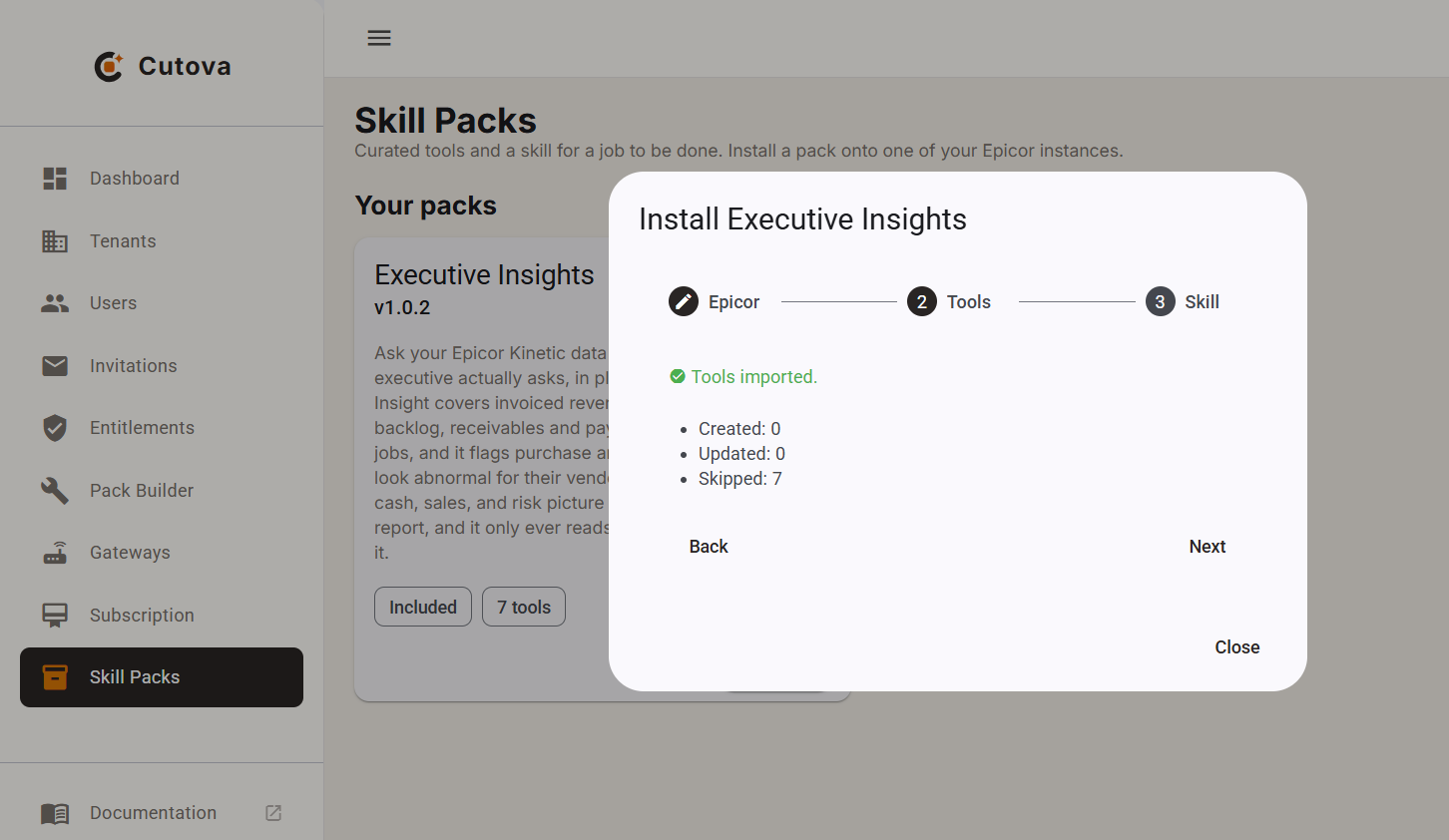
This example is an existing installation: all seven tools were skipped, with none created or updated. Your counts depend on what is already installed on the selected instance.
A plan-capacity message means some tools were not enabled. Free capacity or change your plan before using questions that need those tools. An installed skill cannot call a tool that is missing or disabled.
4. Add the skill to your assistant
Section titled “4. Add the skill to your assistant”Click Download skill on the Skill step, then Done. You can download it again from the pack’s Download skill button. After successful tool installation, copy the suggested prompt if one appears, then close the installer. Reuse an existing client connection to this instance. Refresh its tools or reconnect if new tools do not appear.
In Claude
Section titled “In Claude”- Enable Code execution and file creation if it is not already enabled.
- Open Customize → Skills.
- Click +, then Create skill → Upload a skill, and select the downloaded skill package.
- Turn on Cutova Executive Insights in the skills list.
- Connect Claude to your instance and sign in with your Epicor account.
If the upload picker requires .zip, use a copy of the downloaded .skill package with a .zip extension.
Keep the files inside the package together, including its references and aggregation script.
Your organization may control skill uploads and code execution. See Claude’s skill installation instructions if these controls are missing.
In another client
Section titled “In another client”Use its skill installation feature if it supports the package format and bundled scripts. MCP connectivity alone does not install the skill. The Executive Insights skill uses a Python script for exact totals and grouped results, so it needs code execution for those workflows.
If your client cannot run the skill, it can still call the installed MCP tools. Start with a supported lookup and verify the result. Contact Cutova for help choosing a client for the full workflow.
5. Ask your first question
Section titled “5. Ask your first question”Use the pack’s suggested prompt:
Show posted invoiced revenue for this year versus last year, plus cash and receivables. State the company and the date range you used.
The assistant should call the pack’s tools and identify the company and reporting period. If the available data cannot answer part of the question, it should say so. Compare the answer with Epicor using the same company, dates, and accounting basis.
Continue with Get your first answer for checks and a follow-up question.
Add your own tools too
Section titled “Add your own tools too”You are not limited to the pack catalog. Publish your own BAQs, Functions, or Business Object tools and give the assistant instructions for your workflow. The pack is a starting point; you choose what else the assistant can do.
Other packs
Section titled “Other packs”For BAQ Builder, Kinetic Uplift or Epicor Functions, select that pack in Packs and choose the target instance. Follow its installer and install the Epicor prerequisites it lists. Resolve missing or failed tools before continuing. Download its skill, add it to a compatible assistant, and use its suggested prompt when supplied. Start in a sandbox. Review generated queries, code and apps before production use. These packs require a paid subscription or an active eligible trial. See trial and billing guidance.
Epicor® and Kinetic® are trademarks of Epicor Software Corporation. Cutova is an independent product and is not affiliated with, endorsed by, or sponsored by Epicor Software Corporation.
Cutova, a product of Lens Software LLC